In order to begin your work with Topstep you must first register on their website and pay for access to a trading account (combine).
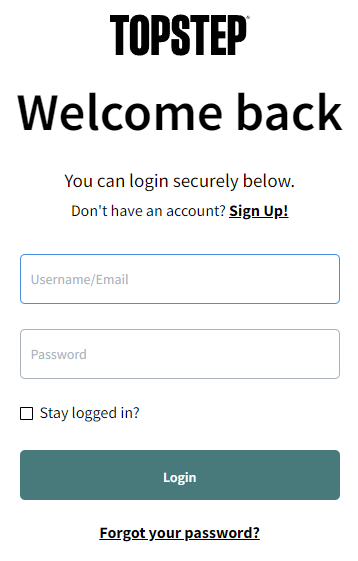
Once you have paid, please log in to your personal account on the Topstep website using the login and password you provided during the registration process.
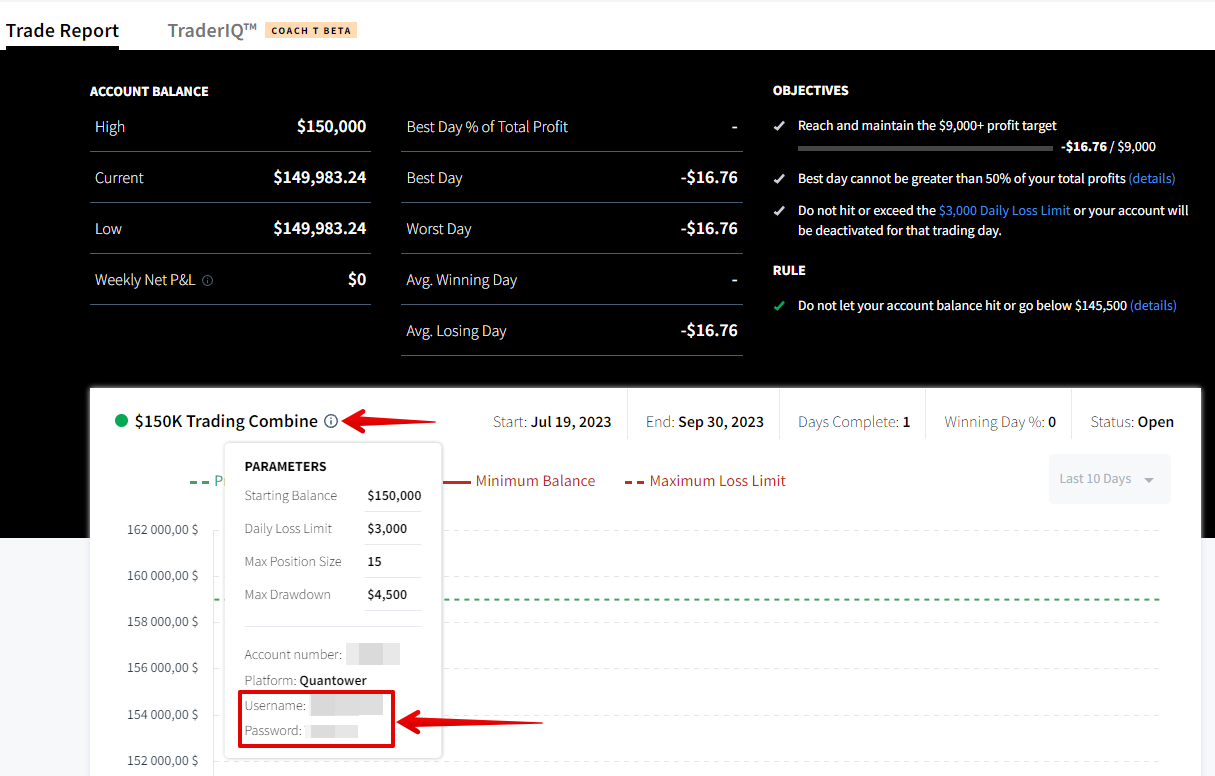
When you access the general section of your personal account, you'll find the main parameters of your account, such as your current balance, Net P&L, and performance chart.
To access a trading account through the Quantower platform, you need to click on the icon for additional account information. Your login and password details will be displayed there.
Possible issues with connection to Topstep account & trading issues
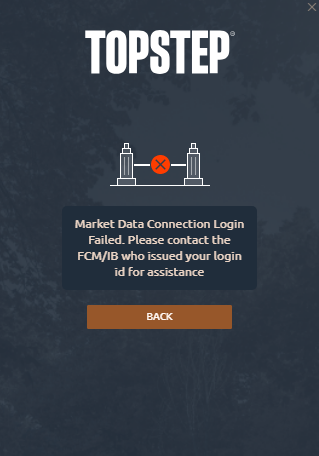
Market Data Connection Login Failed. Please contact the FCM/IB who issued your login id for assistance.
The most common issue encountered while attempting to log in to the platform is an error. This may be caused by several reasons:
1) Please ensure that you are entering the correct password to access the platform, as it is not the same as the one used for logging into your personal account.
2) Please ensure that you have chosen the correct server for connection, as it is crucial to use Topstep (Tostep trader Chicago Area, Topstep trader Europe, etc.)
3) Please make sure your account is active. To do this, open the Rtrader Pro platform and try logging in using your credentials. Make sure you've selected the correct server. If you don't have Rtrader Pro, you can download it from the official Rithmic website.
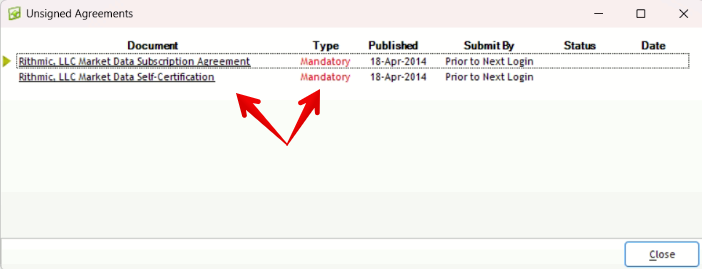
4) For new users, please make sure to sign two agreements first. You can easily do this in the Rtrader Pro platform.
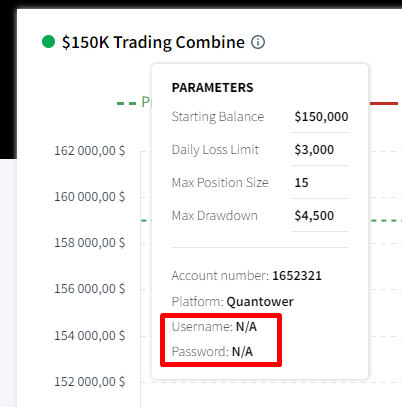
Username & Password are Not Available (N/A)
If your Username and Password are not yet available (N/A), please contact Tosptep support. Typically, the full account activation takes 1-2 business days.
- No symbols found at Topstep
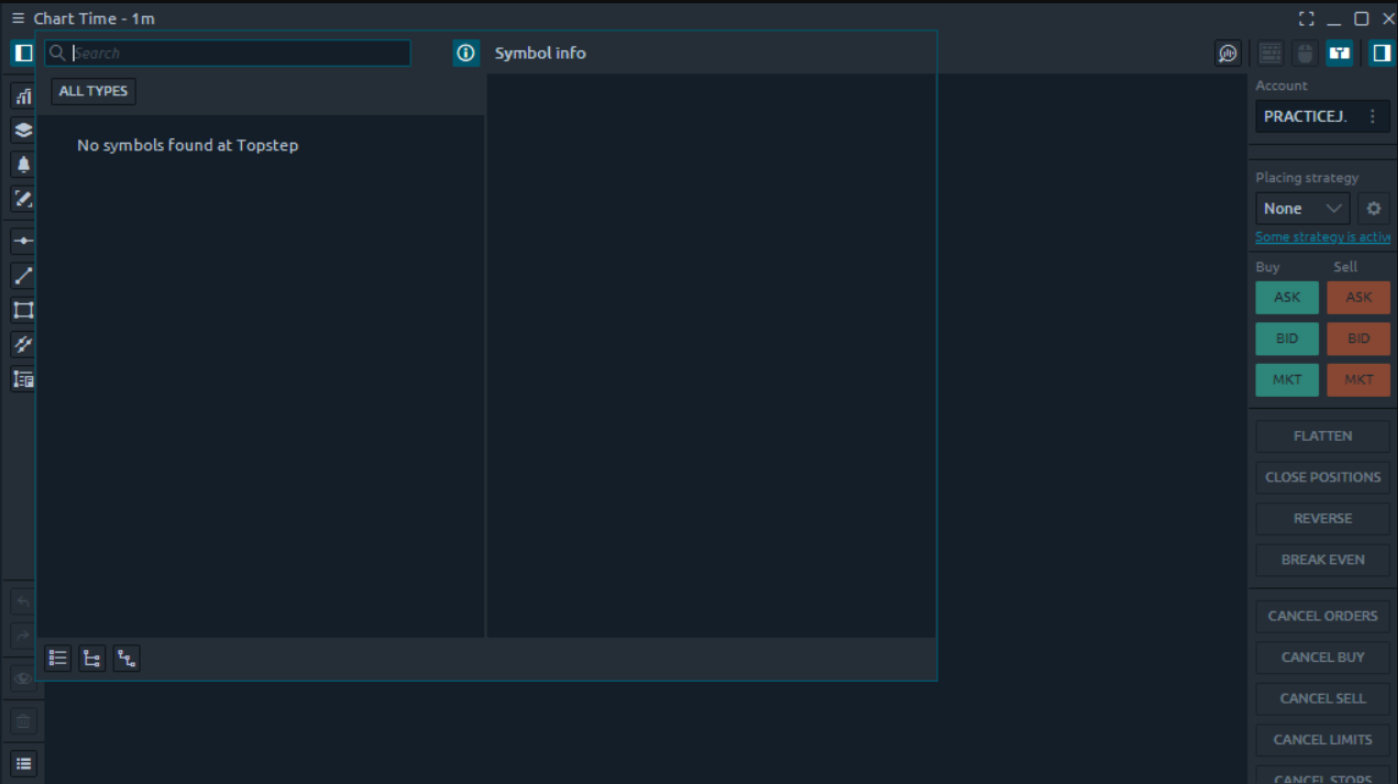
This error occurs when you were able to connect to your account, but at the moment it is not yet fully activated by Topstep. You need to contact their support with your username and account number in order for them to activate your account to receive market data.
- Can not select an account for trading
Sometimes users may encounter an issue of not having a trading account. Even though the platform connection is successful and the market data subscription is active, trading operations are not possible.
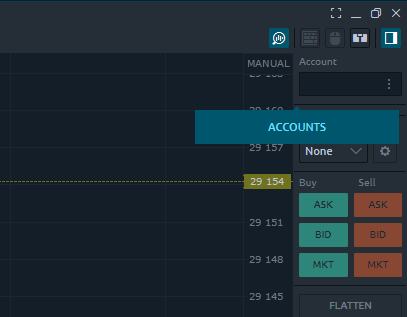
Most likely, your account is not fully activated. We recommend reaching out to Topstep support to resolve this matter. They will be able to assist you and ensure your account is fully activated for trading.
What is included in Quantower for free?
Topstep accounts will be provided with the Premium Feature Bundle for free:
Topstep accounts do not provide the following:
Most popular trading questions:
To create and manage trading sessions, you'll need to use the Sessions Manager . By default, the platform comes pre-configured with trading sessions for major instruments (ES, NQ, CL) and is active for CQG and Rithmic connections.
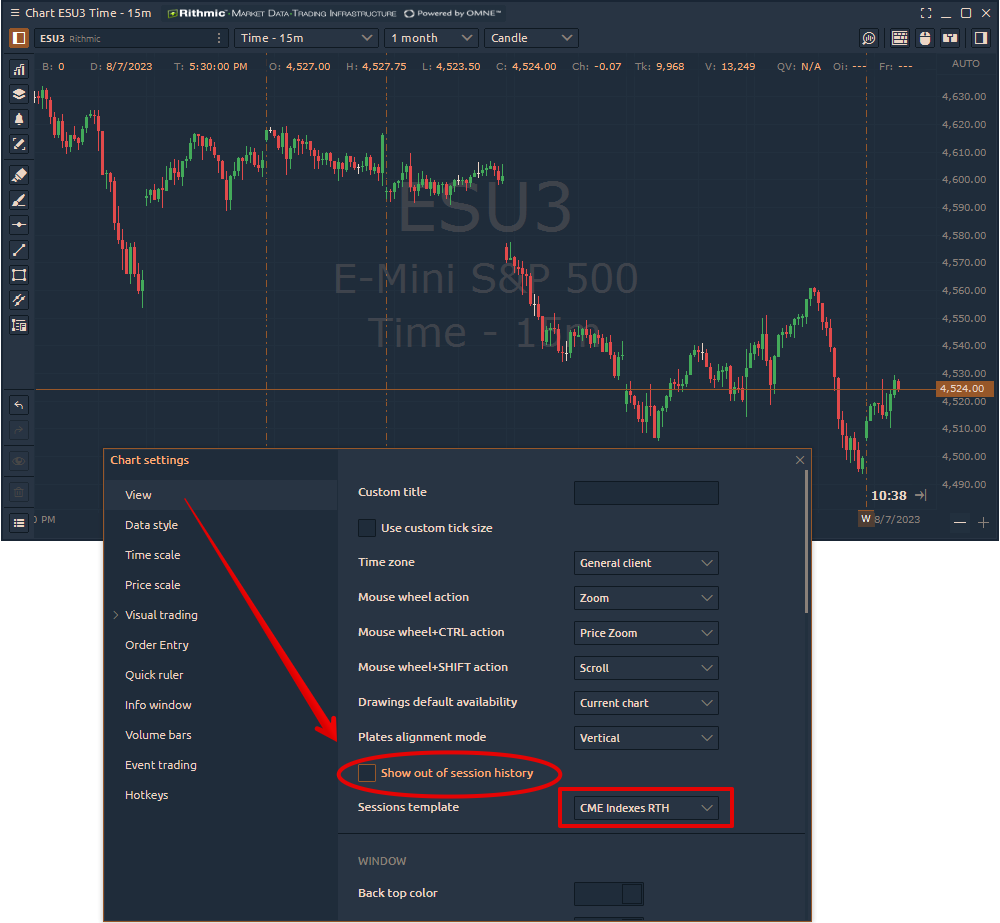
To select a specific session on the chart, go to Chart settings -> View -> Sessions template. From the dropdown list, choose the session you need.
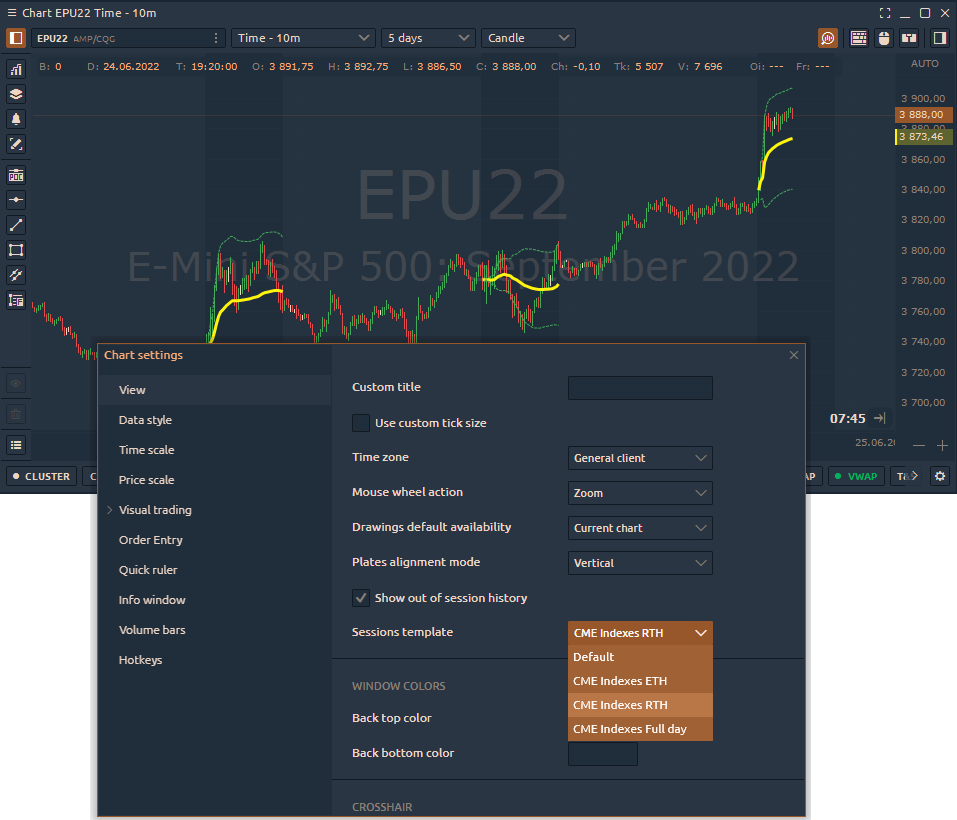
Sometimes, you may want to display data on the chart only for RTH (Regular Trading Hours) or ETH (Extended Trading Hours) session and hide all data that falls outside the specified session time. To do this, open the chart settings, go to the View section, and uncheck the "Show out of session history" option. This way, you'll see only the data relevant to the selected session.
Quantower allows traders to execute trades on micro futures from the chart of the main futures contract. For example, you can analyze the ES chart and place orders directly from it, but these orders will be automatically routed to the micro futures contract MES.To achieve this, we recommend using the Symbol Mapping panel. Setting up the mapping takes just a few clicks and is thoroughly explained in our documentation.
What's even more exciting is that you can configure mapping not only within one connection (Rithmic or CQG) but also across different connections (like dxFeed + Interactive Brokers).
https://www.youtube.com/watch?v=GrJBUYSxvHE
Topstep accounts will be provided with the Premium Feature Bundle for free:
Topstep traders can enjoy free Copy Trading, which operates under a single login that includes multiple accounts.
Before activating a cluster chart, you need to enable the Volume Analysis Toolbar. To do this, in the upper right corner of the chart panel, click on the "Magnifier" icon. A toolbar with Volume Analysis tools will appear at the bottom of the chart.