
Positions panel displays an extended information about all currently opened positions, their P/L and prices
Positions panel displays all currently opened positions. Once you open a new position, it appears in this panel and becomes available to be managed. Positions panel is related to Portfolio group of Control Center sidebar.
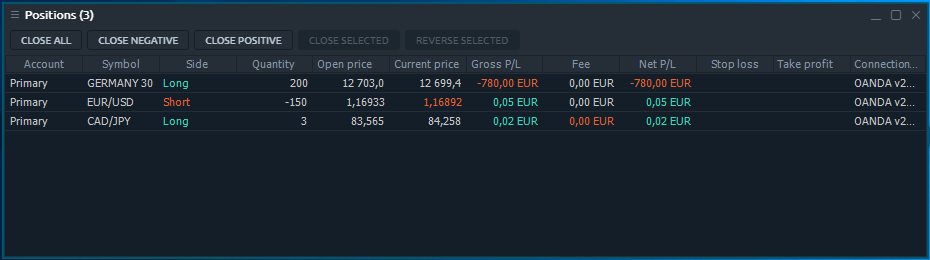
Available columns
Account | login name of an account that opened a position |
Symbol | a traded symbol |
Description | comments for symbol |
Symbol type | a symbol's market category (CFD, spot, stocks, etc.) |
Expiration date | date of contract expiration |
Position ID | a unique number that the trading system assigns to each position |
Side | type of trade (BUY or SELL) |
Open price | price at which a position was opened |
Current price | a market price obtainable from a broker |
Quantity | amount of a position, either in lots or in units, depending on what is selected in the Settings dialog box |
Date/Time | date and time when a position was opened |
Gross P/L | profit/loss in account currency, calculated on base of price difference |
Gross P/L, ticks | |
Net P/L | profit/loss for a position excluding fee |
Position exposure | exposure of a position, in the account currency. Calculated on base of an open price |
Position value (open price) | open value of a position. Calculated on base of an open market price |
Position value (current price) | current value of a position. Calculated on base of a current market price |
Fee | shows total commission amount taken for a position |
Swaps | amounts collected/paid out by a broker when a position is rolled over to a new value date |
Expiration date | date of contract expiration |
Strike price | price of option contract performance |
Stop loss | Stop loss price set for a position |
Take profit | Take profit price set for a position |
Context menu actions
By right-clicking on each row of Positions panel, you will get a context menu with the following functions:
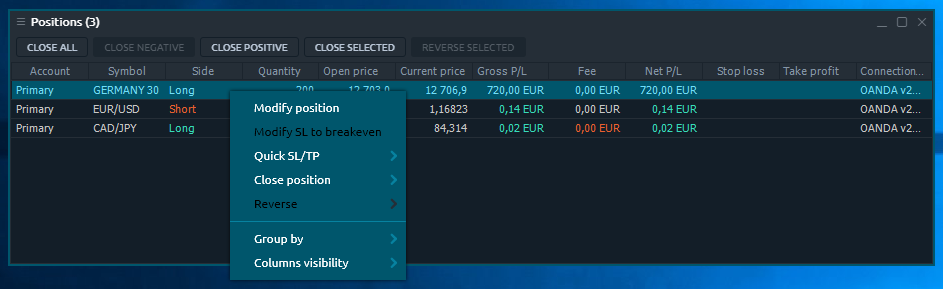
Selected position(s) actions
Modify position | Invokes the modification screen, allowing to add SL/TP orders to selected position manually |
Modify SL to breakeven | |
Quick SL/TP | allows quick adding SL/TP orders to selected position |
Close position | Options: close all selected positions, all positions by selected symbol, all positions for selected account, all positions |
Reverse | allows reversing all selected positions, all positions by selected symbol, all positions by selected account, all positions |
Common actions
Group by | Groups all rows by the selected column |
Columns visibility | Allows to toggle the columns visibility |
Hot buttons toolbar
In order to manage your position efficiently, there is a Hot buttons toolbar in Positions panel. It allows trader to perform the most crucial actions with each, several or all available opened positions in one click.
Hot buttons list
Breakeven | |
Close all | closes all opened positions |
CLX all | closes all opened positions and cancels all orders |
Reverse all | reverses all positions |
Close negative | closes the positions with negative P/L |
Close positive | closes the positions with positive P/L |
Close long | closes the positions with Side = Long |
Close short | closes the positions with Side = Short |
Close | closes all positions by selected symbol and account |
Close selected | closes all selected positions |
Reverse | reverses positions by selected symbol and account |
Reverse selected | reverses all selected positions |
CLX | closes opened positions and cancels orders by selected symbol and account |
Hot buttons visibility
By default, not all of the available Hot buttons are displayed on Positions panel's toolbar. You can manage visibility of that buttons using the context menu: right-click with your mouse and toggle the desired buttons.